YouTube tutorial

An auto captions tutorial for YouTube, from upload to final review

This auto captions tutorial for YouTube walks through the work that matters after speech is transcribed: checking the words, correcting timing, and confirming what viewers can see. The steps focus on YouTube Studio, with a separate note for creators who want captions visible inside the video itself.

Video editing scene representing the caption review workflow

Prerequisites

Before opening the caption editor, prepare the video and decide whether viewers should be able to switch captions off.

  1. 1

    Prepare clear source audio

    Listen to the uploaded video before relying on auto captions. Reduce background music under speech where possible, and note any names, specialist terms, or numbers that transcription might mishear. If several people speak at once, expect to spend more time correcting the result.

  2. 2

    Check access to the video

    You need access to the video in YouTube Studio to inspect and edit its subtitle track. Open the correct video and check its selected language; a mismatched language makes the generated text harder to evaluate and may affect which caption options appear.

  3. 3

    Choose the caption type

    YouTube subtitle tracks are selectable by viewers. Captions burned into the picture stay visible to everyone and cannot be switched off. Decide which outcome you need before editing, because publishing a subtitle track does not add visible text to the video image.

Numbered steps

Work through the video in order, then use these related guides when your captioning goal calls for a different workflow.

Common errors and fixes

Treat generated text as a draft. Correct meaning first, then check whether each line appears while the corresponding words are spoken.

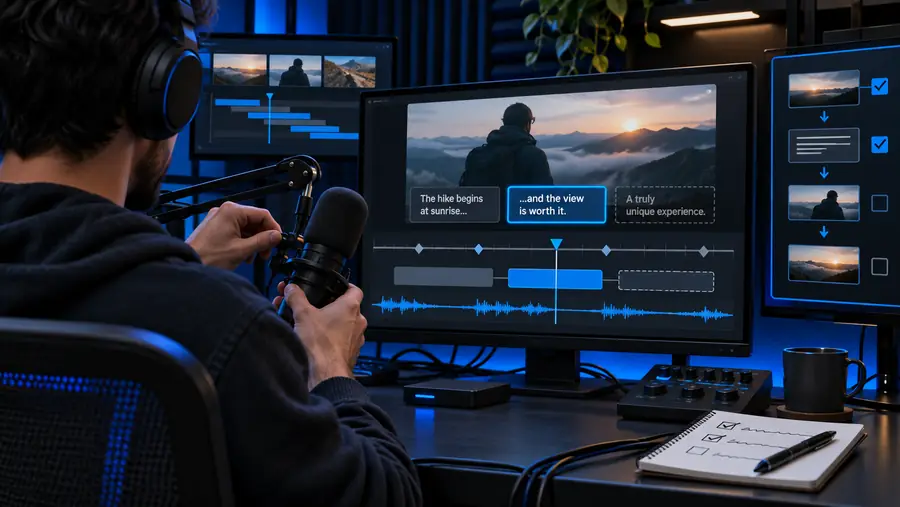
Illustrative video caption workflow before a full text and timing review Unreviewed draft
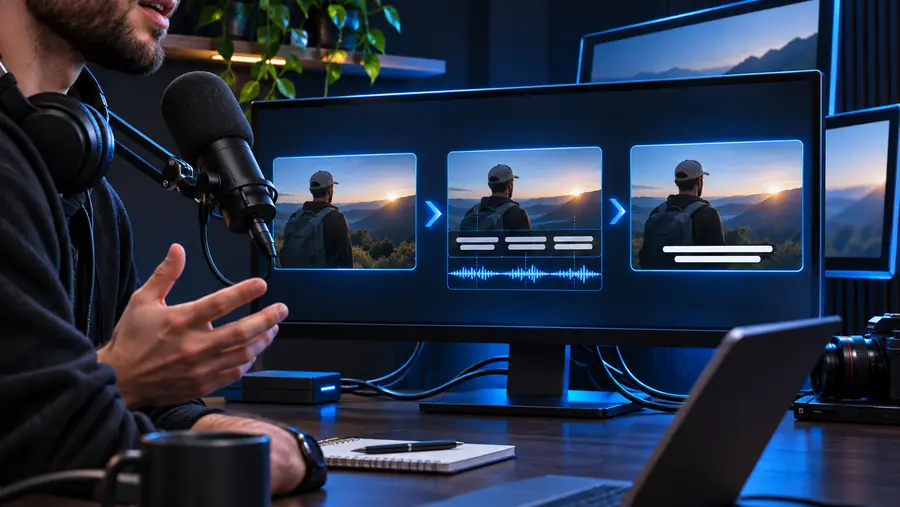
Illustrative lesson video with readable captions after review Reviewed captions
These images illustrate a review, not a guaranteed output. If a name is wrong, replace the word and replay that sentence. If a caption arrives early or lingers, adjust its timing where the editor permits. If text is missing, listen again and add the omitted speech rather than guessing from context. Finally, view the saved track outside the edit screen: a correction that looks right in a text list can still be hard to read during playback.

Advanced tips

A careful final pass makes auto captions more useful without assuming the first generated track is complete.

Automatic text cannot verify facts

Auto captions may confidently miswrite product names, locations, figures, or unfamiliar vocabulary. A fluent-looking sentence is not proof that it matches the speaker.

Workaround

Keep a short list of proper nouns and numbers beside you, then check each one against the audio or your source script.

One pass cannot resolve difficult audio

Overlapping speakers, strong background music, accents, and clipped words can leave gaps or inaccurate phrases. Replaying the same draft will not recover information that is inaudible.

Workaround

Replay difficult sections with headphones and consult the original recording or speaker when a word remains unclear.

YouTube subtitles do not change the picture

A published subtitle track is not the same as captions embedded in exported video. Viewers may need to turn the track on, and its appearance can depend on their playback settings.

Workaround

If text must always be visible, prepare a captioned video before upload and check the exported picture separately.

This page cannot edit your video

The tutorial explains checks and decisions; it cannot access your YouTube Studio, correct a track, or confirm that a particular upload has automatic subtitles available.

Workaround

Follow the steps on your own video and verify the saved result in its viewer-facing player.

Choose the right caption output

Use this comparison when deciding whether a selectable track meets your needs or whether text must be part of the finished picture.

YouTube subtitle track
Captions embedded in video

Where text lives

YouTube subtitle track

In a subtitle track associated with the uploaded video.

Captions embedded in video

Inside the video frames of an exported file.

Viewer control

YouTube subtitle track

Viewers can generally toggle captions in the player.

Captions embedded in video

Viewers cannot switch the embedded text off.

Correction after upload

YouTube subtitle track

Edit the available track in YouTube Studio.

Captions embedded in video

Correct the source project, export again, and upload the revised video.

Appearance

YouTube subtitle track

The player and viewer settings influence presentation.

Captions embedded in video

Text styling is fixed in the exported picture.

Other platforms

YouTube subtitle track

The track belongs to the YouTube video; do not assume it travels with a downloaded video file.

Captions embedded in video

The text remains visible wherever that video file is played.

Accuracy check

YouTube subtitle track

Review generated words and timing before publishing the track.

Captions embedded in video

Review words, timing, and readability before exporting the final file.

Best fit

YouTube subtitle track

A YouTube video whose viewers should have a caption toggle.

Captions embedded in video

A video that must show text even when a player has no subtitle track selected.

Put the review into practice

Give every caption a final watch

Whether you use a YouTube subtitle track or prepare text in a video project, play the result from beginning to end. Check names and numbers, watch for lines that appear too early or late, and make sure text is readable over the footage. Autocaptions points you toward a video creation workspace; check its current capabilities before choosing it for a specific caption task.

Explore video creation
  • Listen while reading the captions
  • Check the saved viewer-facing result
  • Keep the source script for difficult corrections

Tutorial FAQ

Open YouTube Studio, select Content, choose the video, and open Subtitles to look for an automatic track. If none appears yet, check the video's language and return later; generation is not necessarily immediate or available for every upload.

YouTube Studio provides subtitle editing options for eligible tracks. Open the track, follow the available edit or duplicate-and-edit flow, then save or publish your changes and check the video in its player.

Start with words that change the meaning, especially names, figures, and technical terms. Then replay the video to check when each caption starts and ends, because accurate wording is less helpful if it appears during the wrong speech.

Do not assume that a subtitle track will be visible to every viewer. Playback settings affect whether selectable captions appear; if text must always show, embed it in the video before uploading.

Replay the passage and add the missing words in the subtitle editor if the audio is understandable. If the recording is unclear, consult your script or speaker rather than inventing a line that only seems plausible.

Start creating
Start creating