Caption workflow guide

Is an auto captions alternative free of the costs that matter?

An auto captions alternative free of upfront cost can still demand time for corrections, styling and export checks. Compare the complete workflow—not just the first caption draft—before moving a video project.

total-cost table

The comparison table below treats money, editing time and publishing friction as separate costs. Start with the routes most relevant to your videos.

where quality differs

Judge a caption tool by the video you can publish after review, not by how convincing its first transcript looks.

Speech recognition cannot confirm meaning

Auto captions can mistake names, technical terms, accents or speech under music. A readable-looking sentence may still misrepresent what the speaker said.

Workaround

Listen while reviewing the transcript and keep a short list of names and terms to check on every video.

A free option may restrict the final export

Some tools distinguish between generating captions and exporting a usable video or caption file. Availability and conditions can change, so this page cannot guarantee a particular plan or watermark status.

Workaround

Test one short representative video and inspect the downloaded result before committing a larger project.

Visual style does not fix poor timing

Large type and strong contrast help legibility, but captions that appear too early, linger too long or cover important footage still need attention.

Workaround

Watch the finished video at its intended viewing size, checking timing and placement as well as spelling.

where time differs

The fastest first draft is not always the fastest path to a publishable video. Compare the same clip in each workflow.

  1. 1

    Prepare one test clip

    Choose a clip with ordinary speech, at least one difficult name and a section with background sound. Use that same source in each option so differences in auto captions are easier to spot.

  2. 2

    Review the complete draft

    Note how much work it takes to correct words, split long lines and align captions with speech. Count your own hands-on editing time rather than relying on a tool’s generation speed.

  3. 3

    Inspect the deliverable

    Check the exported result for readable text, unwanted markings and any format your publishing process needs. If an export is unavailable, record that as a workflow cost rather than assuming another step will solve it.

What to inspect in the finished frame

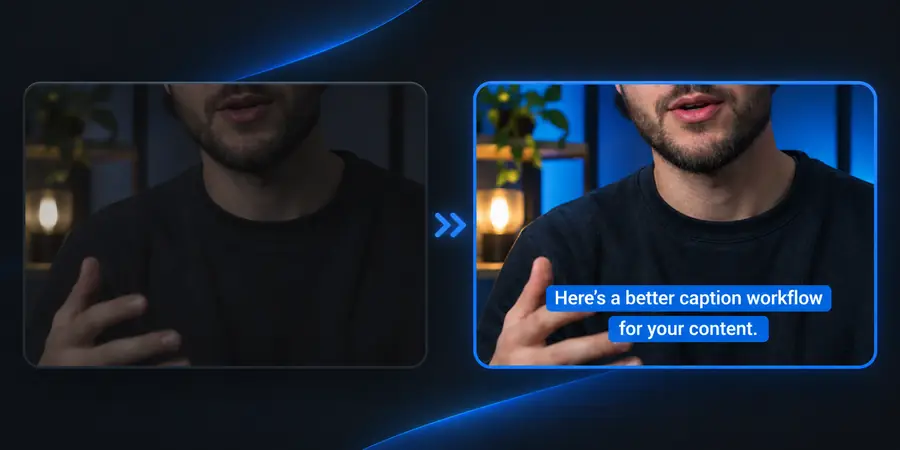
Illustrative video-caption workflow image for comparing alternatives Draft to review
Illustrative video frame showing captions to review for readability Publication check
These are illustrative images, not a measured before-and-after test or proof of a particular tool’s output. In your own clip, check each line against the audio and inspect placement on the final frame.

when switching is worth it

A switch makes sense when the new workflow removes a recurring obstacle without introducing a bigger one at export.

YouTube-first creator

Your videos stay on YouTube and you mainly need viewers to follow spoken content.

Compare the platform’s caption review process with a separate workflow before adding another editing step.

auto captions vs youtube

Short-form publisher

You reuse a clip across platforms and need to see how captions sit inside a vertical frame.

Test the exported video at phone size; switching may be worthwhile if your current process requires repeated placement fixes.

auto captions instagram

Creator checking no-cost options

You can tolerate transcript corrections but cannot accept an unexpected mark on the delivered video.

Verify the actual export before treating a free caption option as suitable for publication.

free auto captions no watermark

Compare the complete cost of each route

This table compares workflow types, not guaranteed features of specific products. Check current terms and test an export before deciding.

Platform-built-in captions
Separate caption workflow

Upfront cost

Platform-built-in captions

May be included in the platform you already use; check its current terms.

Separate caption workflow

Varies by tool and plan; a no-cost entry point does not establish export rights.

Where captions are used

Platform-built-in captions

Often most convenient when the video remains on that platform.

Separate caption workflow

Potentially useful for a publishing process that spans destinations, subject to available exports.

Transcript corrections

Platform-built-in captions

Review names, punctuation and missed words in the platform editor.

Separate caption workflow

Review the same speech errors and assess whether the editor reduces correction time.

Timing and line breaks

Platform-built-in captions

Check how the platform displays and times each caption segment.

Separate caption workflow

Check whether the available timing controls fit your final video.

Visual placement

Platform-built-in captions

Viewer display may depend on the platform and its caption settings.

Separate caption workflow

If captions appear in an exported video, inspect placement against faces and on-screen text.

Export and markings

Platform-built-in captions

Confirm whether the caption data or video you need can be taken elsewhere.

Separate caption workflow

Confirm permitted formats, restrictions and any visible markings on the actual export.

Switching effort

Platform-built-in captions

Usually fewer handoffs when publishing only to the same platform.

Separate caption workflow

Allow time to move source media, review a draft and check the delivered file.

Test a workflow with your own clip

Make the comparison on real footage

A free auto captions option is only useful if its corrected, exported result fits your publishing process. Take a representative clip through review and inspect what you can actually deliver. Autocaptions can point you toward a video workflow to explore, but this page does not guarantee its features or terms.

Explore video tools
  • Check difficult words against the audio
  • Review timing at normal playback speed
  • Inspect the final export before switching

comparison FAQ

Use the same source clip in each workflow, then compare correction time and the final deliverable. Include a difficult name, background sound and the frame size you normally publish. Check current terms separately from caption quality.

Not necessarily. A tool may let you make or preview captions while placing conditions on downloads, formats or visible markings. Inspect its current terms and complete a test export before relying on it.

They may be the simpler route when you publish to one platform and its caption display meets your needs. You still need to correct recognition errors and check timing. A separate workflow is worth testing if you repeatedly prepare the same video for other destinations.

No automatic draft should be treated as an unchecked transcript. Names, overlapping speakers and background noise can create errors in any workflow. Compare how easily you can find and correct those errors, not whether a preview looks finished at first glance.

Start with one representative project and confirm that you can produce the deliverable you need. Record the time spent correcting, styling and exporting it, then repeat the test with a second clip if your videos vary substantially. Keep access to your original files while you evaluate the new process.

Start creating
Start creating