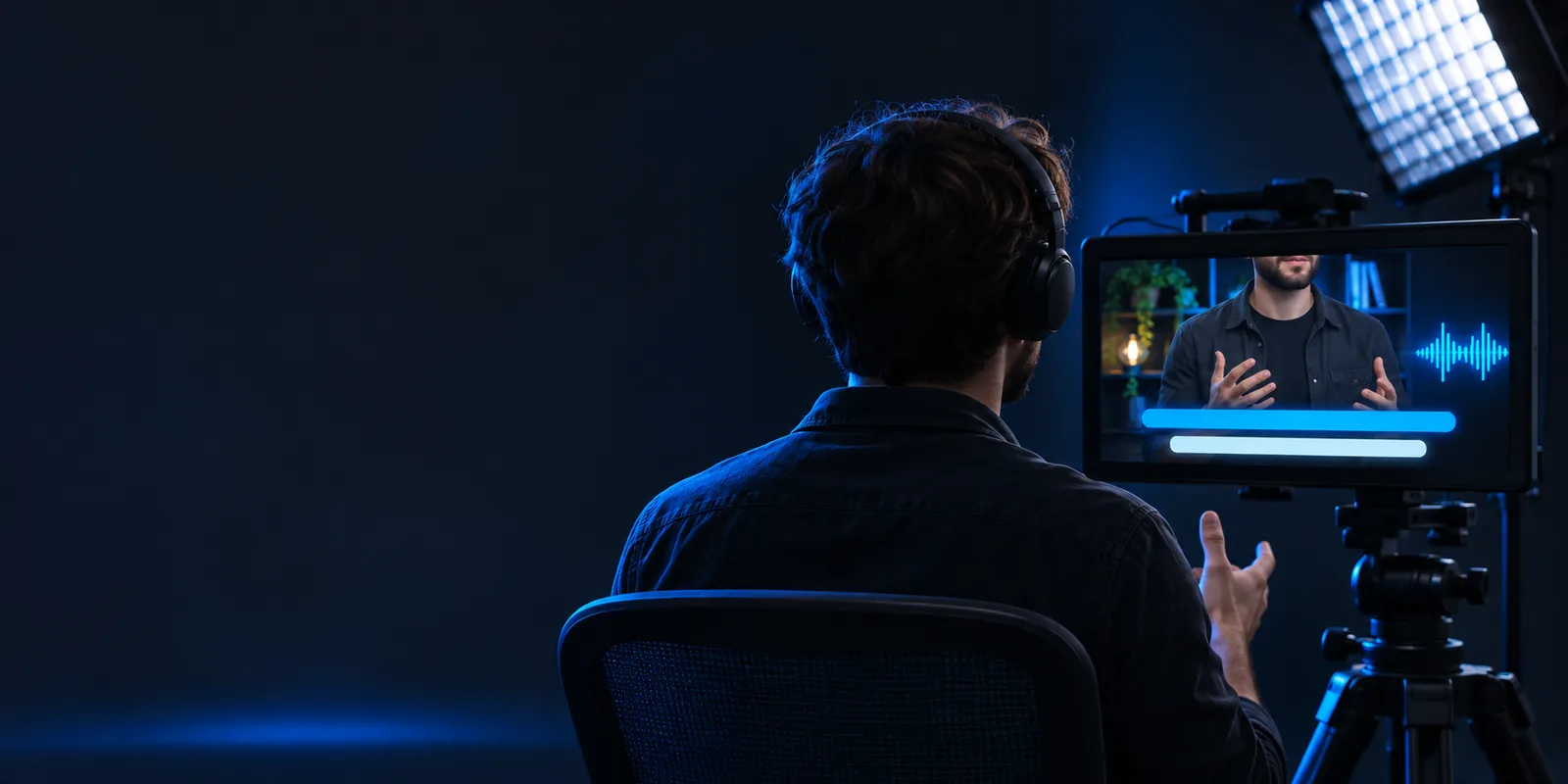
Video caption workflow

Looking for auto captions online free? Plan your next video

If you searched for auto captions online free, start by separating browser access from cost: check the destination’s current terms before uploading a video. Autocaptions offers a practical workflow for preparing speech, reviewing generated text, and checking the finished video.

Check the destination’s terms
Video captioning workspace shown on the Autocaptions site

A clearer path from speech to readable video

Online access is only one part of captioning. Good auto captions also depend on clear audio, a careful text review, and an export that suits where the video will appear.

Three jobs in every caption workflow

Whether you publish lessons, demonstrations, or social clips, auto captions need a source, an editorial pass, and a destination. These creators face different versions of the same three jobs.

Video educators

A lesson includes technical vocabulary and names that speech recognition may mishear.

Review those terms against the recording before sharing the lesson; the guide to how do auto captions work explains why transcription needs that pass.

how do auto captions work
YouTube creators

A long upload needs captions that viewers can follow alongside the spoken explanation.

Check text and timing before publishing; how to auto generate captions on youtube covers the channel-specific choices.

how to auto generate captions on youtube

Social editors

A short clip may be watched with its sound off, making on-screen wording especially important.

Keep each caption readable on a phone; auto captions instagram explores that viewing context.

auto captions instagram

Small teams

A product demo must retain accurate feature names and a clean final frame.

Confirm the names by ear and inspect the export; free auto captions no watermark explains what to verify before delivery.

free auto captions no watermark

Prepare, review, then publish

This step-by-step process works as a checklist when trying an online captioning destination. Available controls and output options may differ.

  1. 1

    Start with clear speech

    Choose the recording with the least background noise you have. Listen for overlapping speakers, quiet introductions, and names the tool is unlikely to know; those are useful places to focus your review.

  2. 2

    Check words and timing

    Compare the generated auto captions with the audio rather than reading them alone. Correct names, punctuation, missing words, and captions that appear too early or remain after the speaker stops.

  3. 3

    Inspect the final video

    Preview the result at the size your audience will use. Check that text does not cover important visuals, then verify the destination’s export choices, access terms, and any watermark before publishing.

Limits worth checking before you upload

An online route does not, by itself, guarantee a free export or accurate transcription. Treat the following as checks, not features promised by Autocaptions or its linked destination.

Free access may have conditions

Opening a tool in a browser does not establish which uploads, edits, or exports are available without payment.

Workaround

Read the destination’s current terms and test the output you need before processing a full project.

Speech recognition can mishear people

Accents, music, overlapping voices, and unfamiliar names can produce plausible-looking but incorrect auto captions.

Workaround

Listen while proofreading, and check names or technical terms against a reliable source.

Exports can differ

A captioned video, a separate caption file, and an editable project serve different publishing needs; none should be assumed available.

Workaround

Confirm the required output and inspect a short test export before committing to the workflow.

Browser access still needs care

An online service requires sending material to its destination, which may not suit confidential or unreleased footage.

Workaround

Check the destination’s privacy terms and obtain permission to upload footage you do not own.

From uploaded speech to checked captions

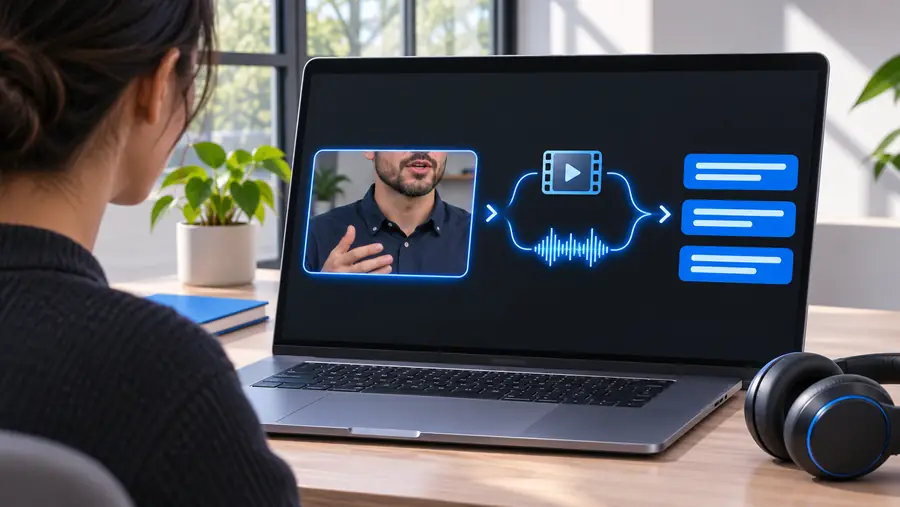
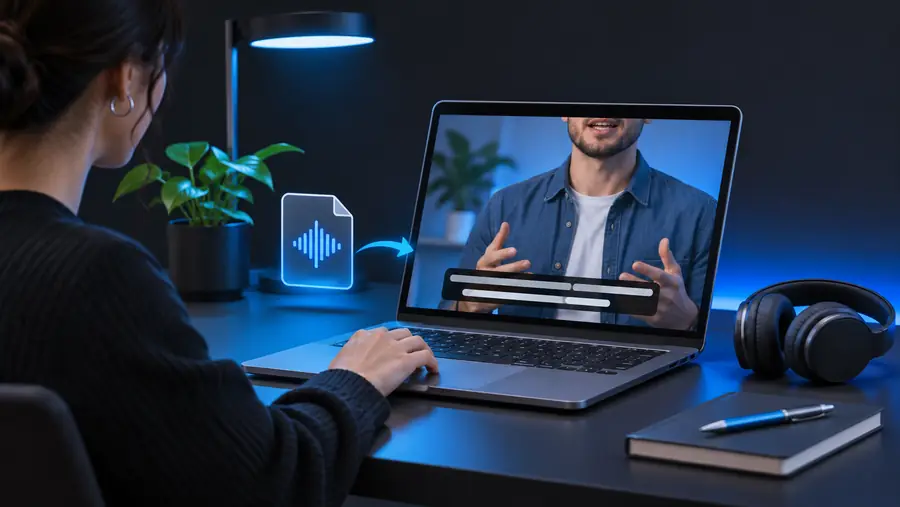
These images illustrate stages of the workflow, not a guaranteed transformation of the same video.

Illustration of a video entering a captioning workflow Video to review
Illustration of a video with captions ready for review Caption text to check
The essential difference is the review: generated text should be checked against what the speaker actually says.

Take the checklist to your video

Start with a video you can verify

Use a short, clear recording to explore the linked captioning destination. Check its current access and export terms, proofread the auto captions, and preview the result before sharing it.

Explore captioning
  • Check access terms
  • Proofread spoken words
  • Preview the export

Questions about captioning online

Some online services offer free access, but that does not tell you whether your required upload, editing tools, or final export are included. Check the destination’s current terms and try a short test before relying on it for a full video.

An online workflow generally starts in a browser, but its upload and editing requirements depend on the service you choose. Check the destination’s instructions and supported devices before preparing your video.

Not reliably. Even when most speech is recognized, names, overlapping speakers, and background sound can introduce errors, so compare the text with the audio before publishing.

That depends on the destination’s export options; a captioned video and a separate caption file are not the same output. Confirm the format you need before starting, especially if you plan to edit captions on another platform.

Watermark policies vary by service and may differ between previews and finished exports. Inspect a short exported sample and check the current terms rather than assuming the final video will be watermark-free.

Start creating
Start creating